
Add or remove nodes
Add machines when you need more computing power, or remove nodes you no longer use.
Kubernetes cluster
Build or connect a Kubernetes cluster on the platform; users simply create a project, press Run and read the results.
Build a clusterBuild a cluster
No config files, no commands to memorise. Pick the machines, assign roles and press Create — the platform installs Kubernetes, the GPU components and shared storage in one go.
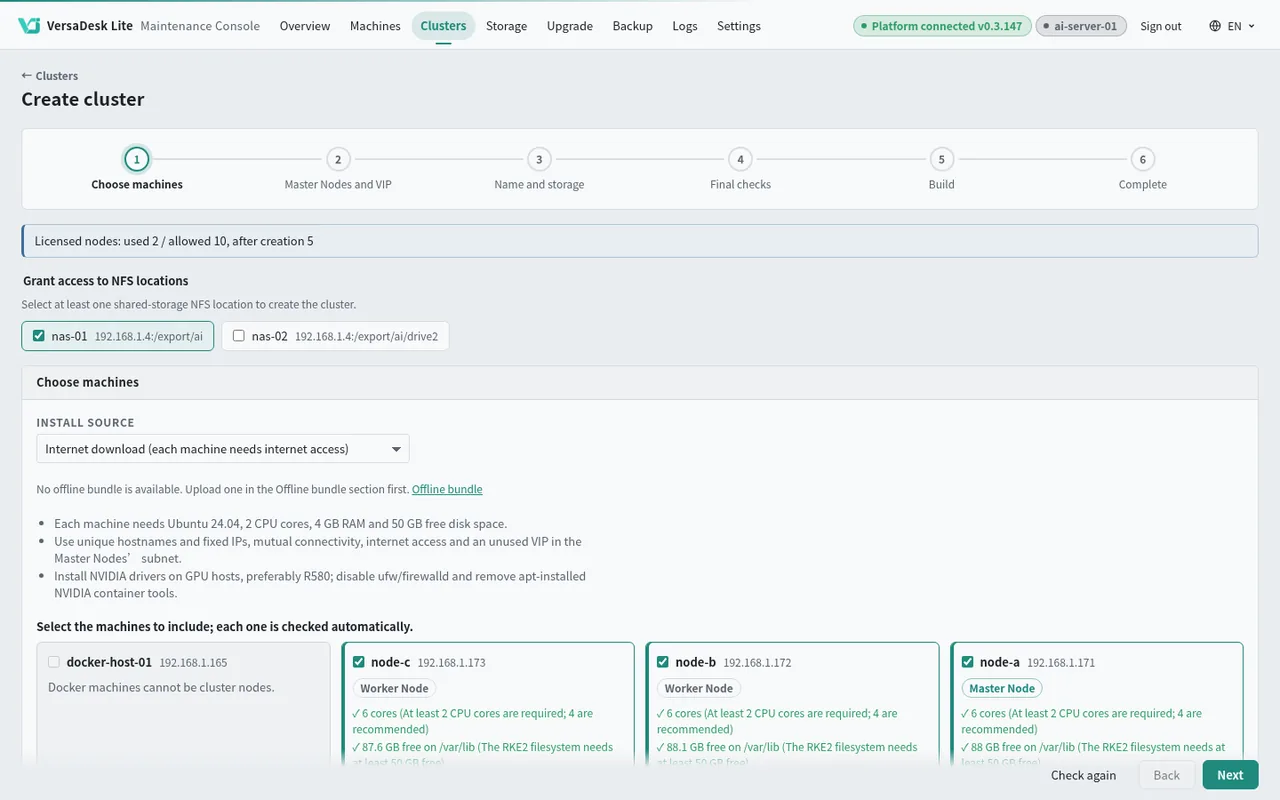
Tick the machines and the shared storage for the cluster.
Console and app screens coming soon
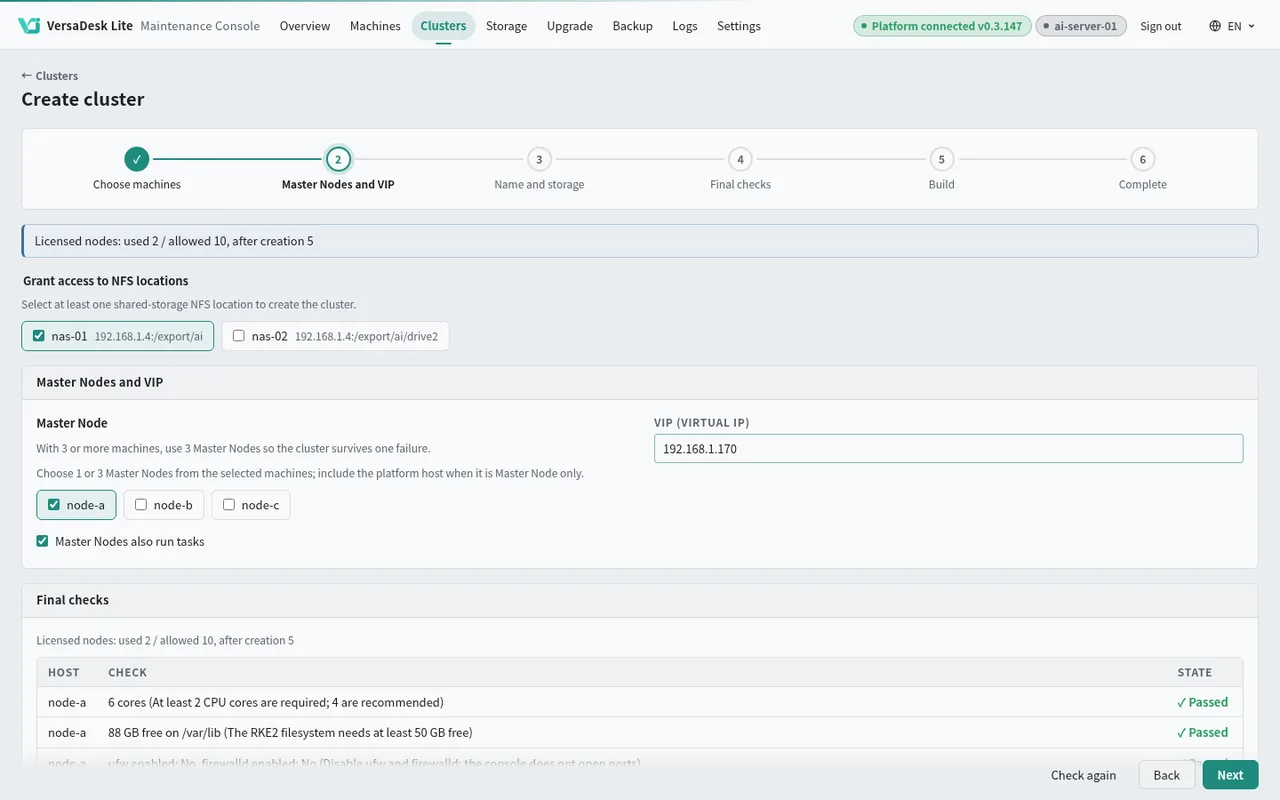
Choose the Master Nodes; several Masters share one VIP, so the cluster keeps running if one goes down.
Console and app screens coming soon
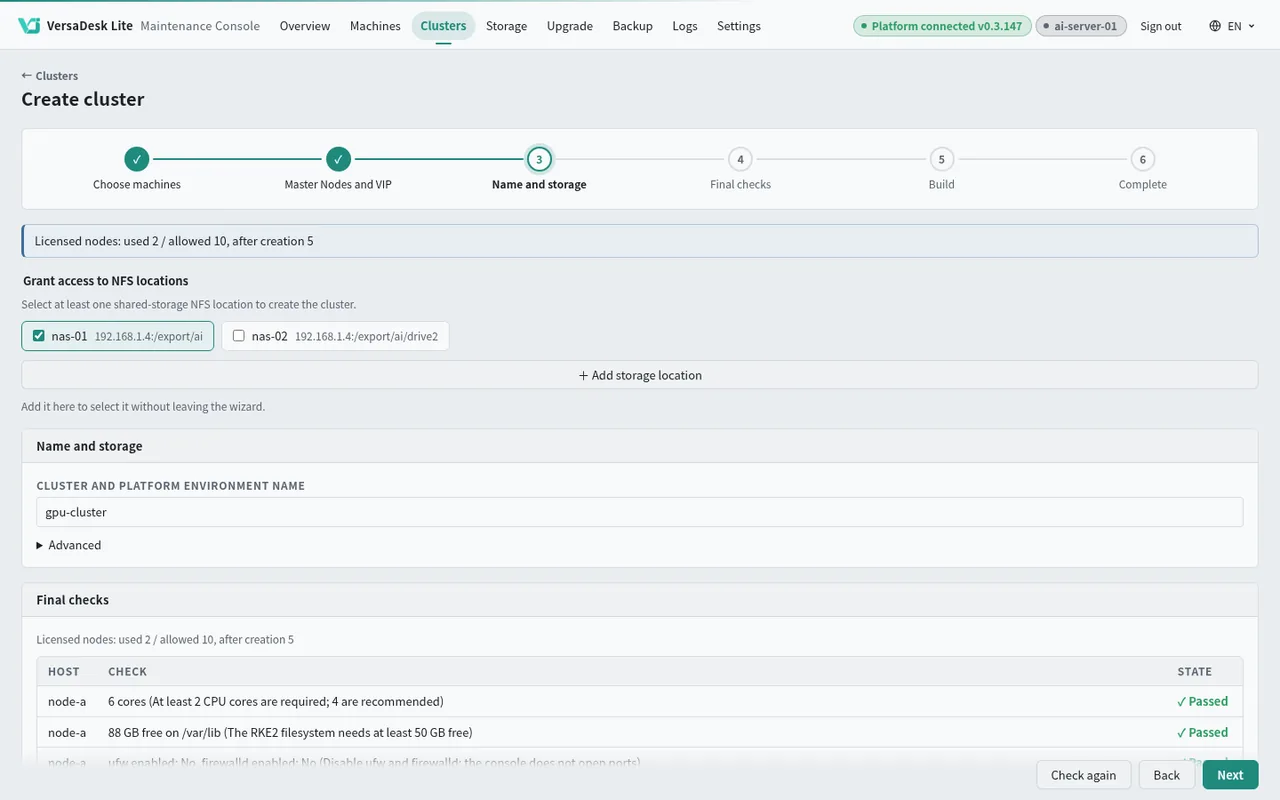
Name the cluster and choose the shared storage for project data.
Console and app screens coming soon
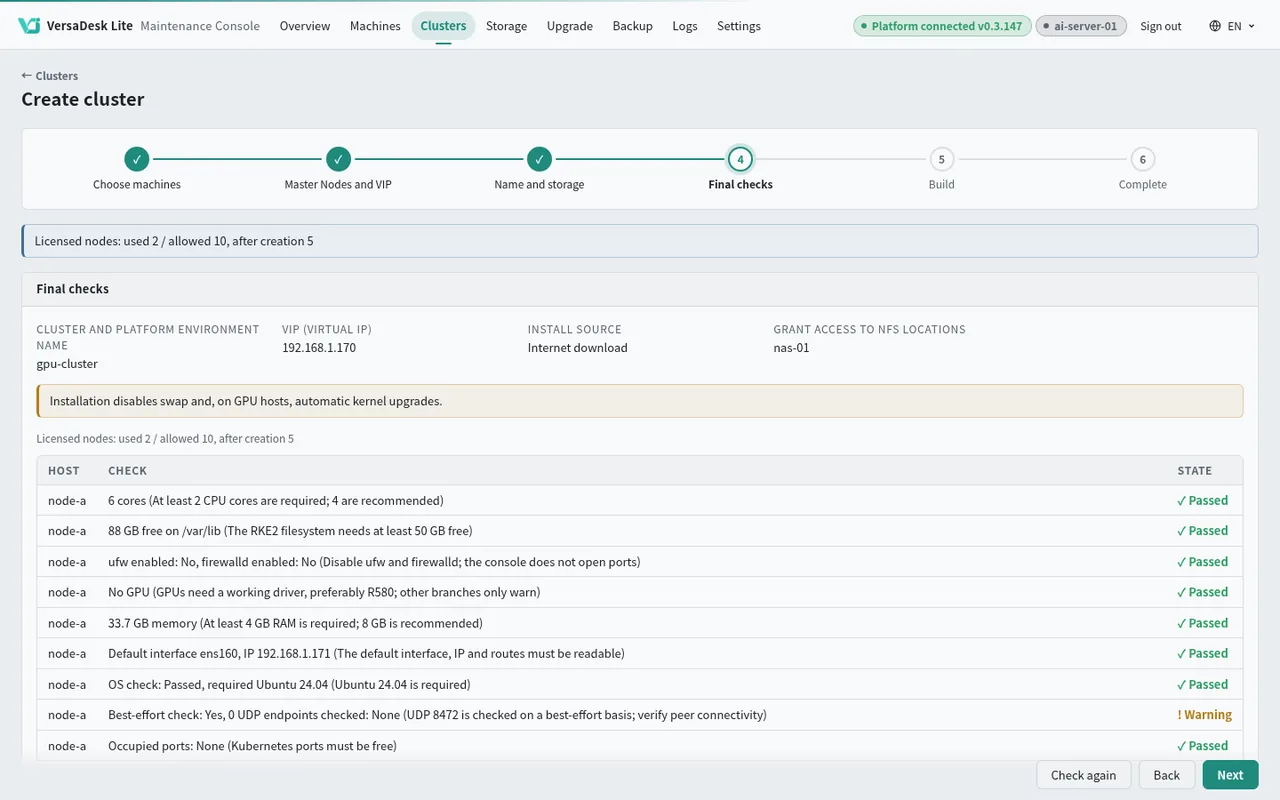
Every machine's system, network and disk are checked at once, and any problem is explained on the spot.
Console and app screens coming soon
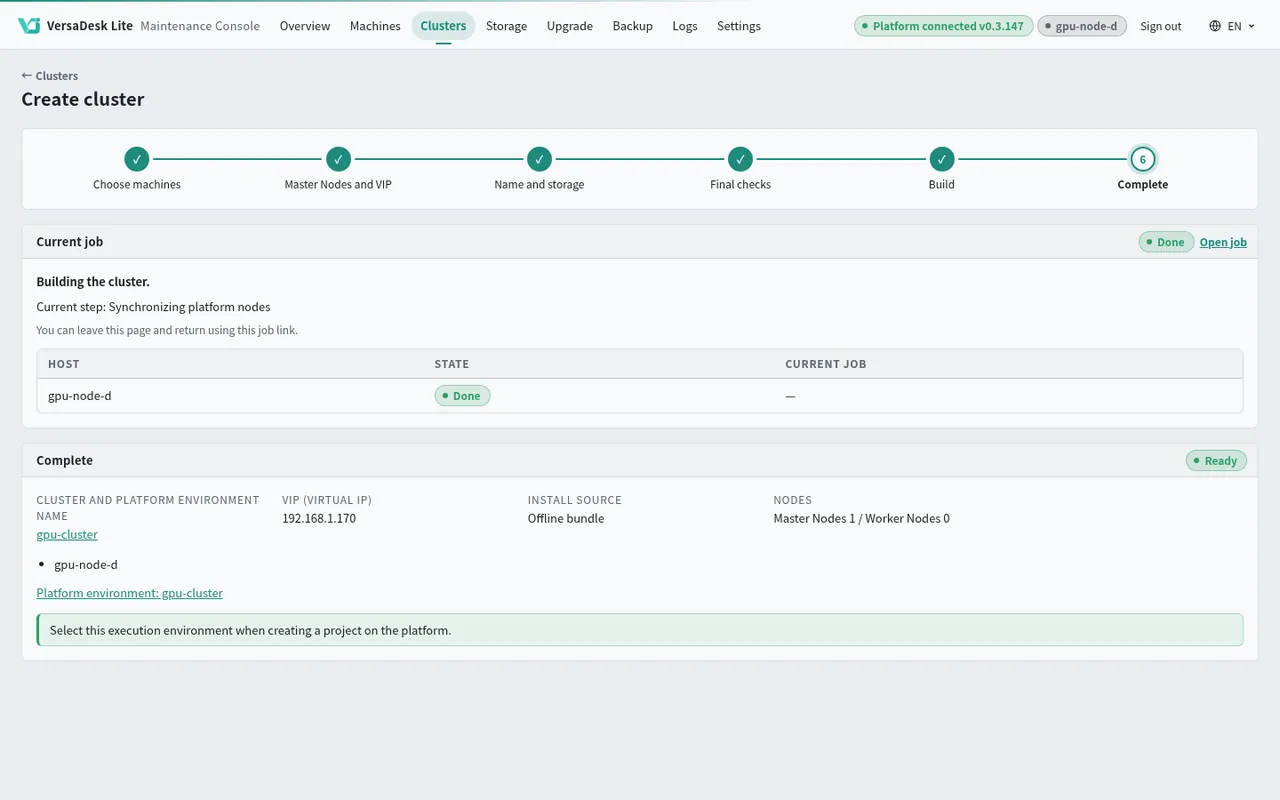
Watch every step's progress; machines with graphics cards get the GPU Operator automatically.
Console and app screens coming soon
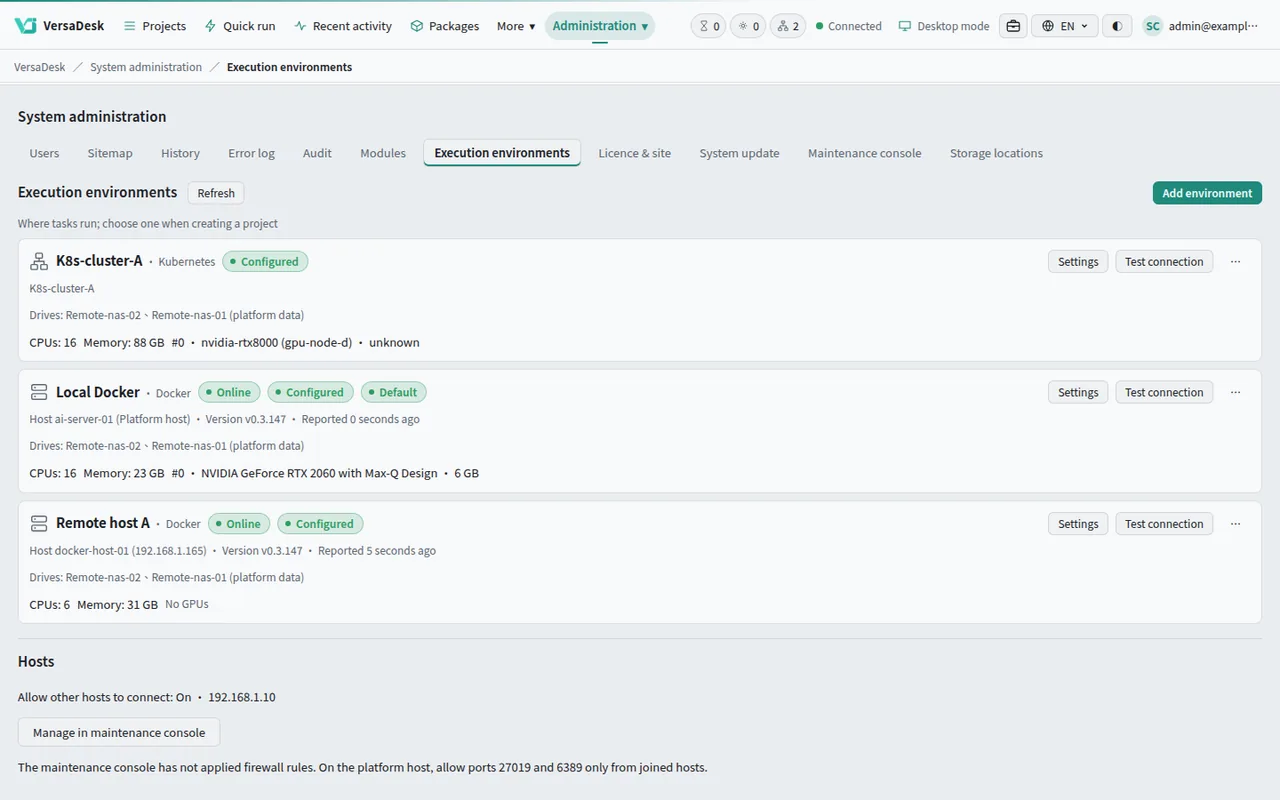
The cluster appears on the platform, ready for projects.
Console and app screens coming soon
Connect a cluster
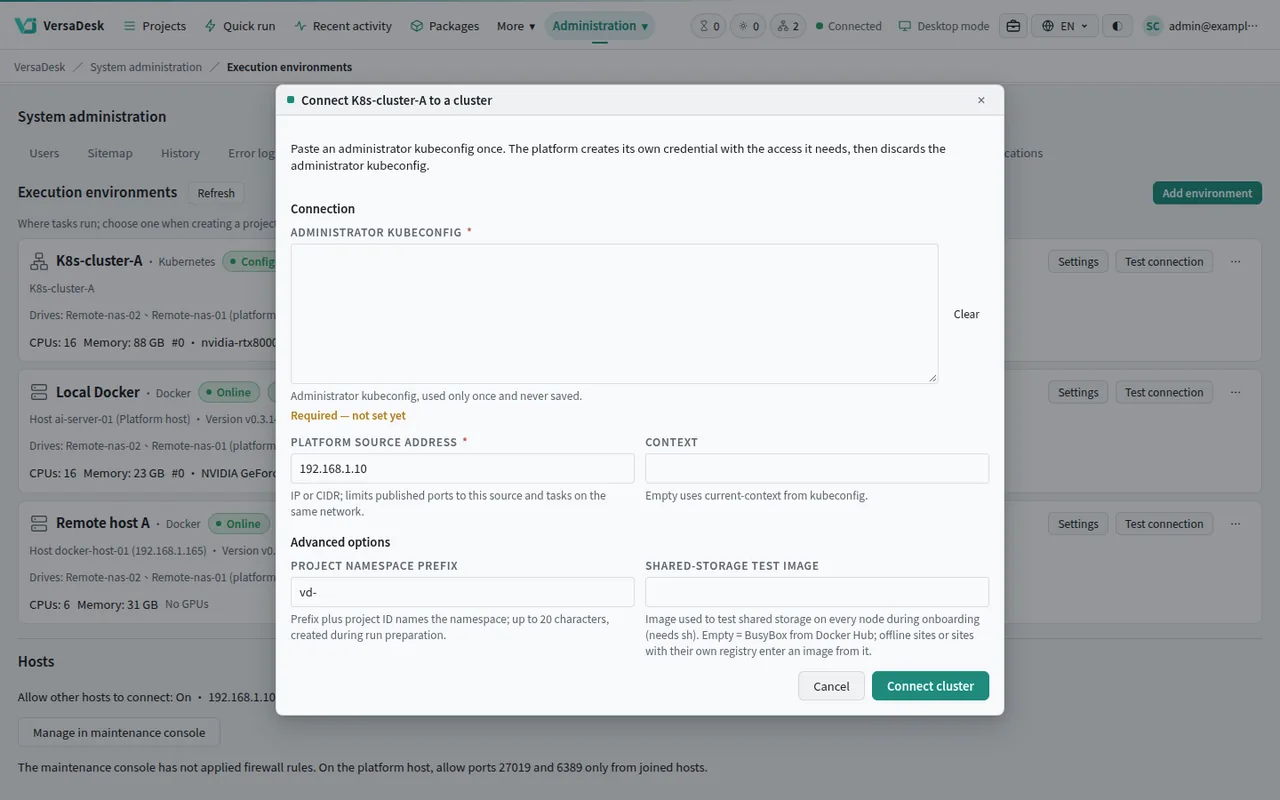
Paste an administrator's settings once. The platform sets up its own working area in the cluster and stays inside it, leaving your existing services alone.
Get the settings from your cluster administrator and paste them into the platform once.
The platform sets up its own working area in the cluster, leaving your existing services alone.
Administrators decide how much CPU, memory and GPU each project may use.
Console and app screens coming soon
Everyday operation
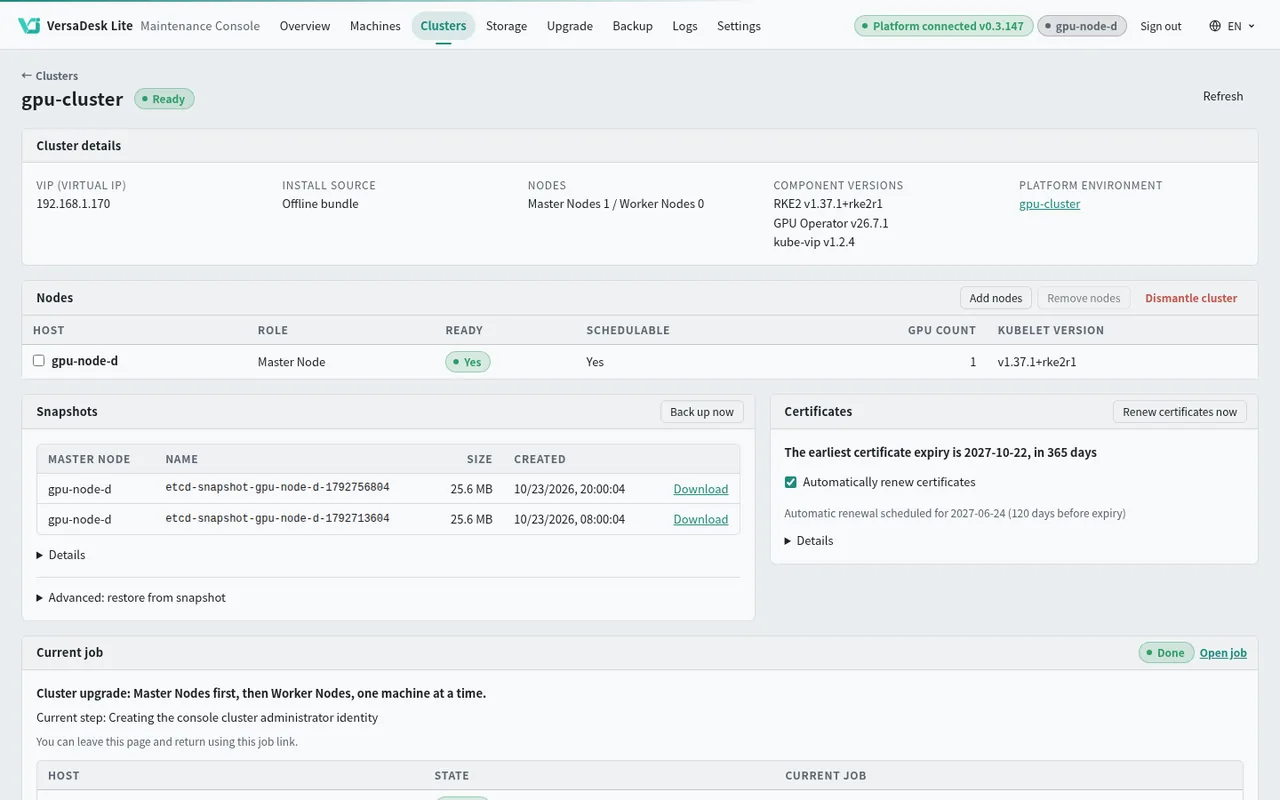
From changing nodes to backup and restore, administrators follow progress in one place.
Add machines when you need more computing power, or remove nodes you no longer use.
Upgrade nodes in sequence and follow each step in the console.
Back up the cluster and restore it from the console when needed.
Routine upkeep runs automatically; administrators check its status in the console.
Prepare the installation files in advance to build a cluster without internet access.
Console and app screens coming soon
GPU
Administrators decide how many cards each project may use and whether it has them to itself or shares them; cards that support MIG can be split into several parts. One screen shows usage on Docker hosts and clusters alike.
Machines with graphics cards get the GPU Operator automatically.
A whole card for one project.
Projects take turns; the platform queues the jobs.
One card split into parts for several jobs at once.
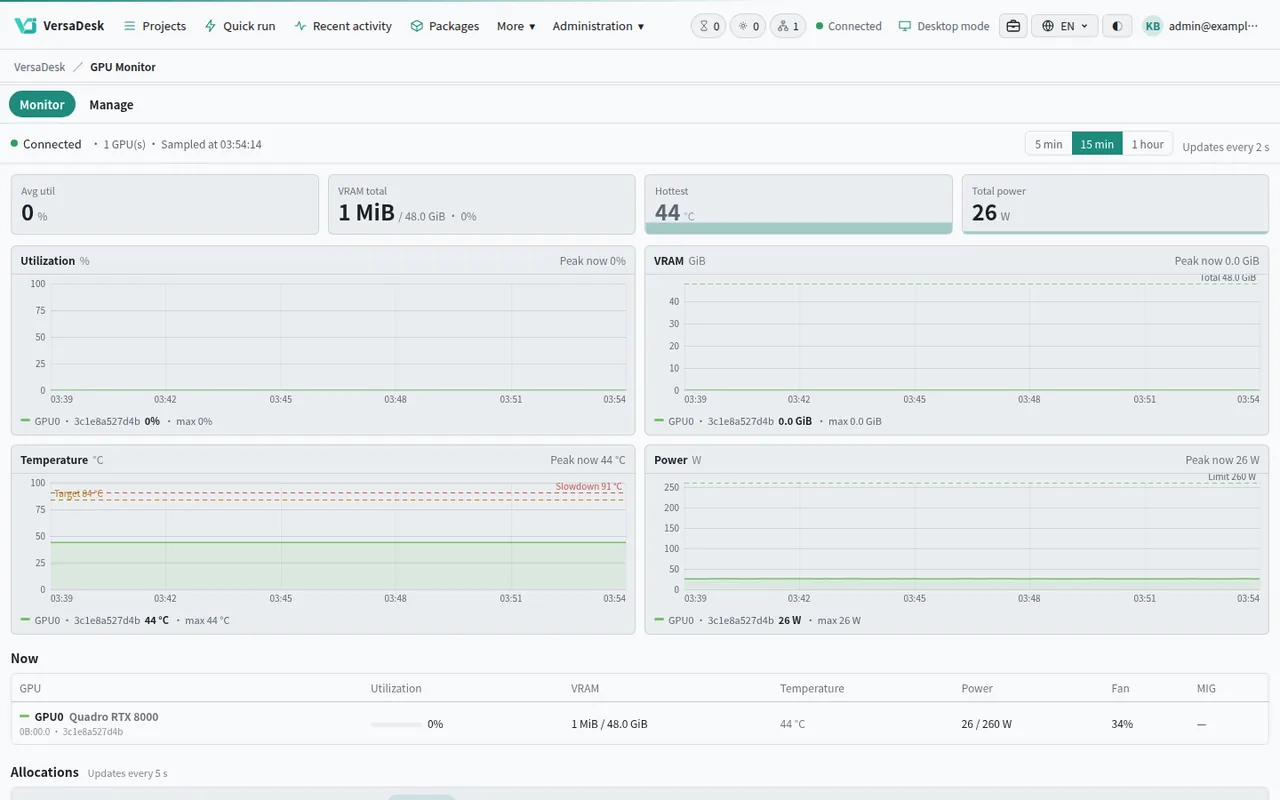
Console and app screens coming soon
Cluster tools
Check cluster status and job results inside the platform.
Browse workloads, nodes and events to see how the cluster is running.
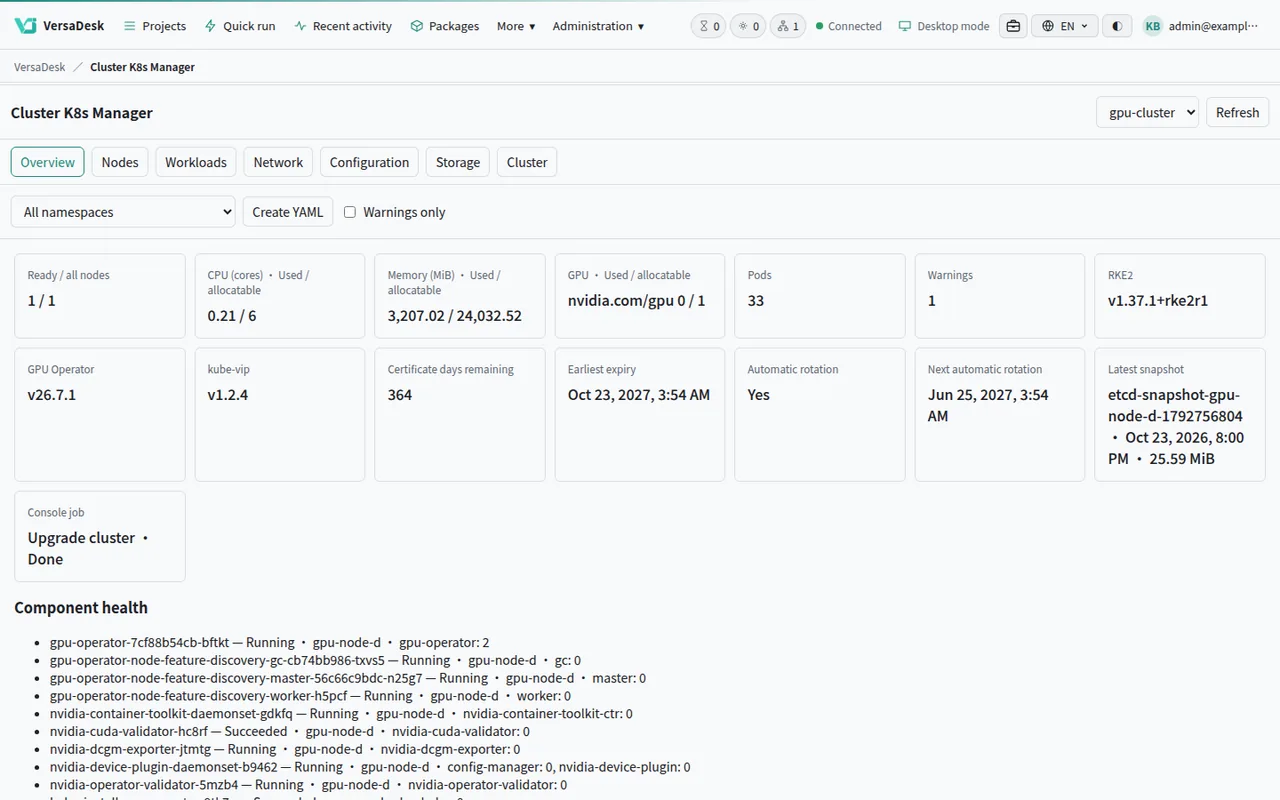
Console and app screens coming soon
The same form, the same results, the same terminal. Job outputs land in the project folder.
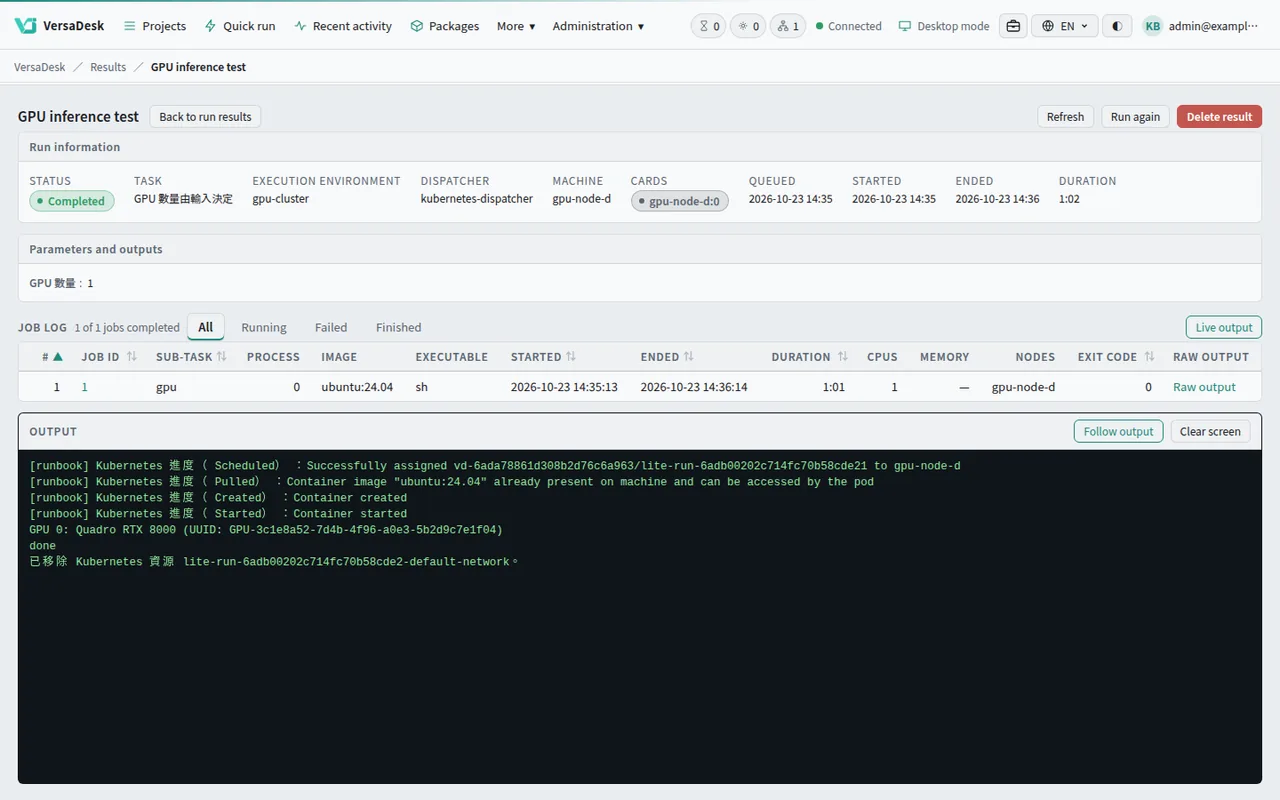
Console and app screens coming soon
Shared storage
Register a NAS once in the console and every host and cluster node mounts it. Whichever machine runs the job, it reads the same project folder.
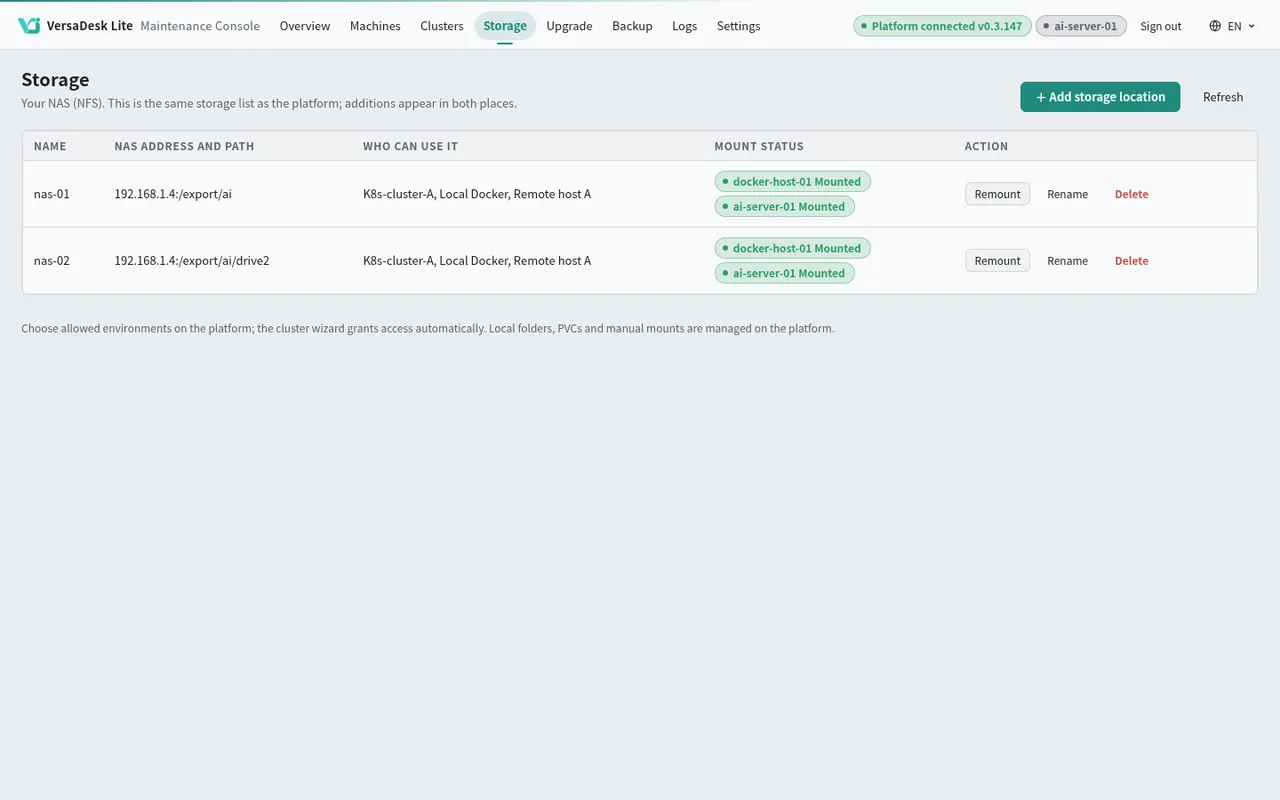
Console and app screens coming soon
Ready as soon as it is installed; add hosts or a cluster when you need more.
Talk to us